
Xometry instantly quotes laser tube cutting and tube bending projects. Projects quoted through the Xometry Instant Quoting Engine will always assume normal to surface cuts to reduce lead time and cost. Not sure what a normal to surface cut is? Click here to learn more.
Normalizing tube cuts in your model may seem daunting, but it only takes a few tools! This article will guide you through two methods for normalizing mitered tube cuts in SolidWorks.
Not all tube cuts are normalized the same way. Be sure to read our other design guides to learn methods for normalizing different cuts.
,
This quick modeling method will reliably normalize miter cuts. It involves trimming away excess surfaces and thickening your tube.
,
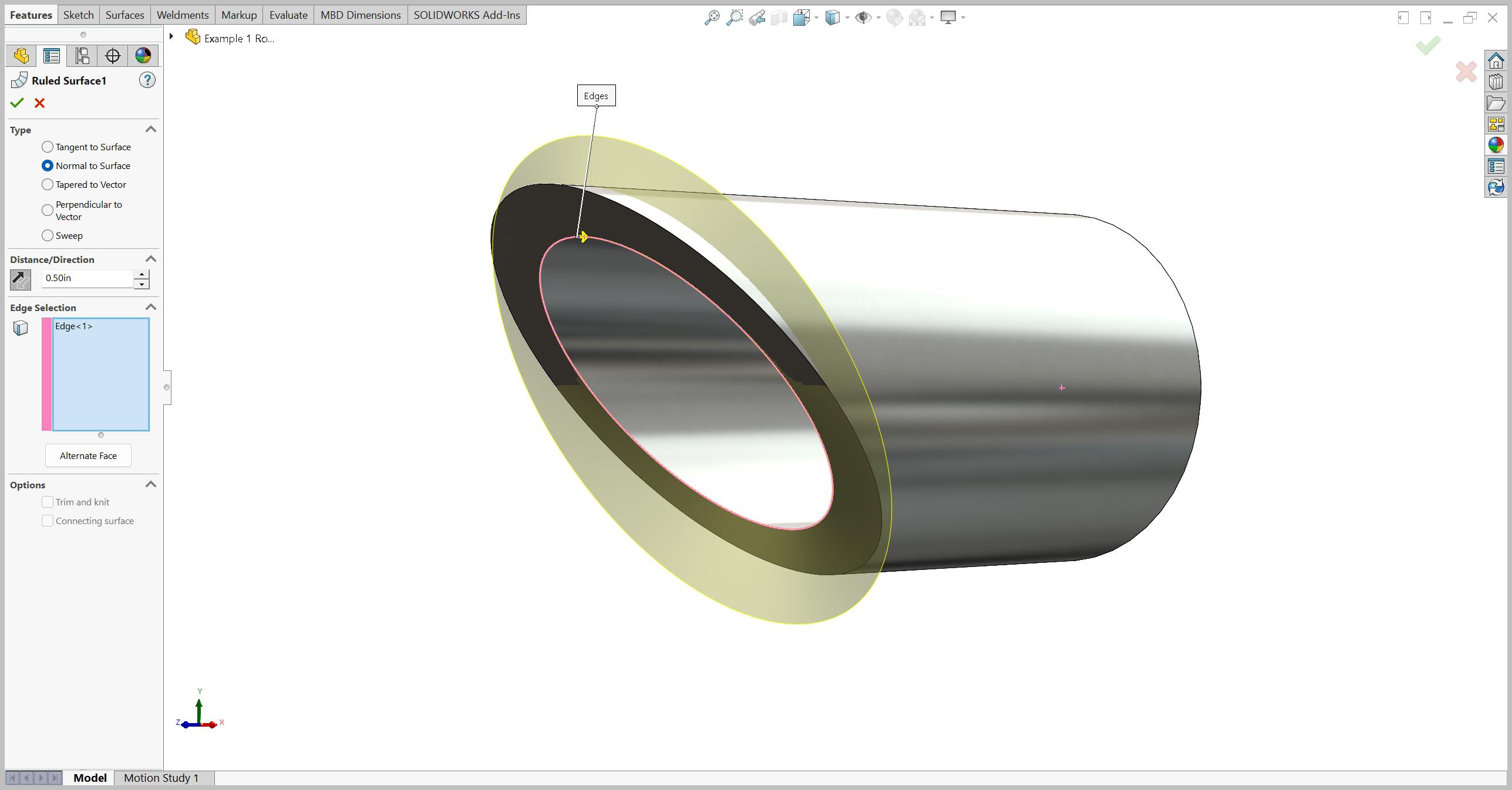
Start by clicking the Ruled Surface tool from the Surfaces tab. Before making selections, set “Normal to Surface” as the “Type”. This will make the ruled surface extrude normal to the surface of the selected edge.
Next, select the inside edge of your mitered cut. This selection will be recorded as your “Edge Selection” and a yellow preview of your ruled surface should appear.
Then, input any distance greater than the thickness of your tube so that the ruled surface extrudes past the outside surface of the tube. If your ruled surface is extruding inwards, click the “Reverse Direction” icon to change the direction.
Finally, click OK.
Pro Tip: If the ruled surface is not extruding outward, select the edge from the “Edge Selection” and click “Alternate Face”. This will change the face the tool is referencing.
,
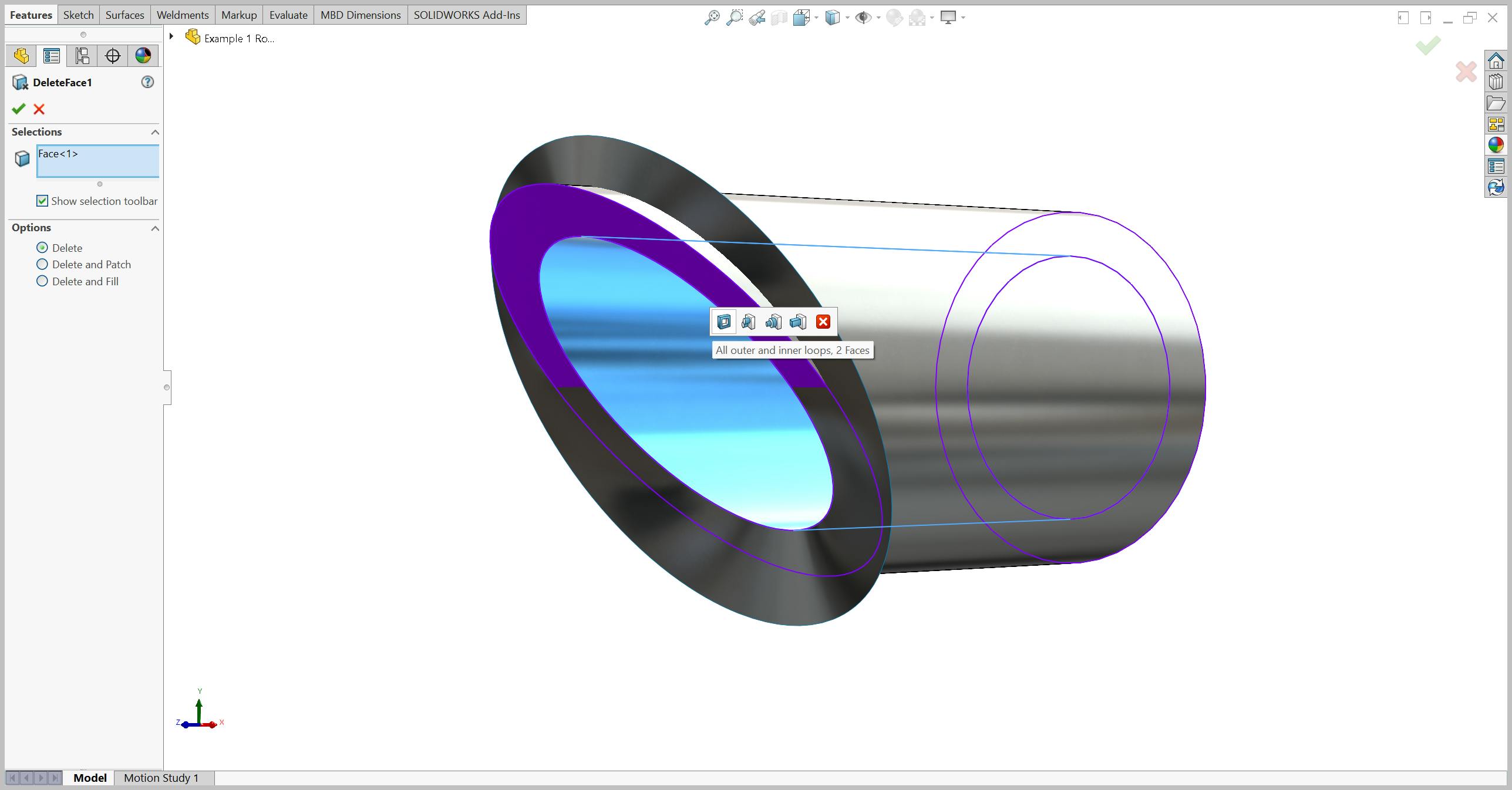
Now that we have our ruled surface, click the Delete Face tool in the Surfaces tab. Before making selections, make sure “Options” is set to “Delete”.
Next, select all faces of your tube EXCEPT for the outside face. You can do this by selecting each face individually, or by selecting the inside face and clicking “All Outer and Inner Loops” from the selection toolbar.
Click OK. You should be left with the outside surface of the tube and your ruled surface.
,
Unlike other normalized cuts, correctly normalized miter cuts have an inflection point. To create this inflection point we will trim away excess surface with our ruled surface.
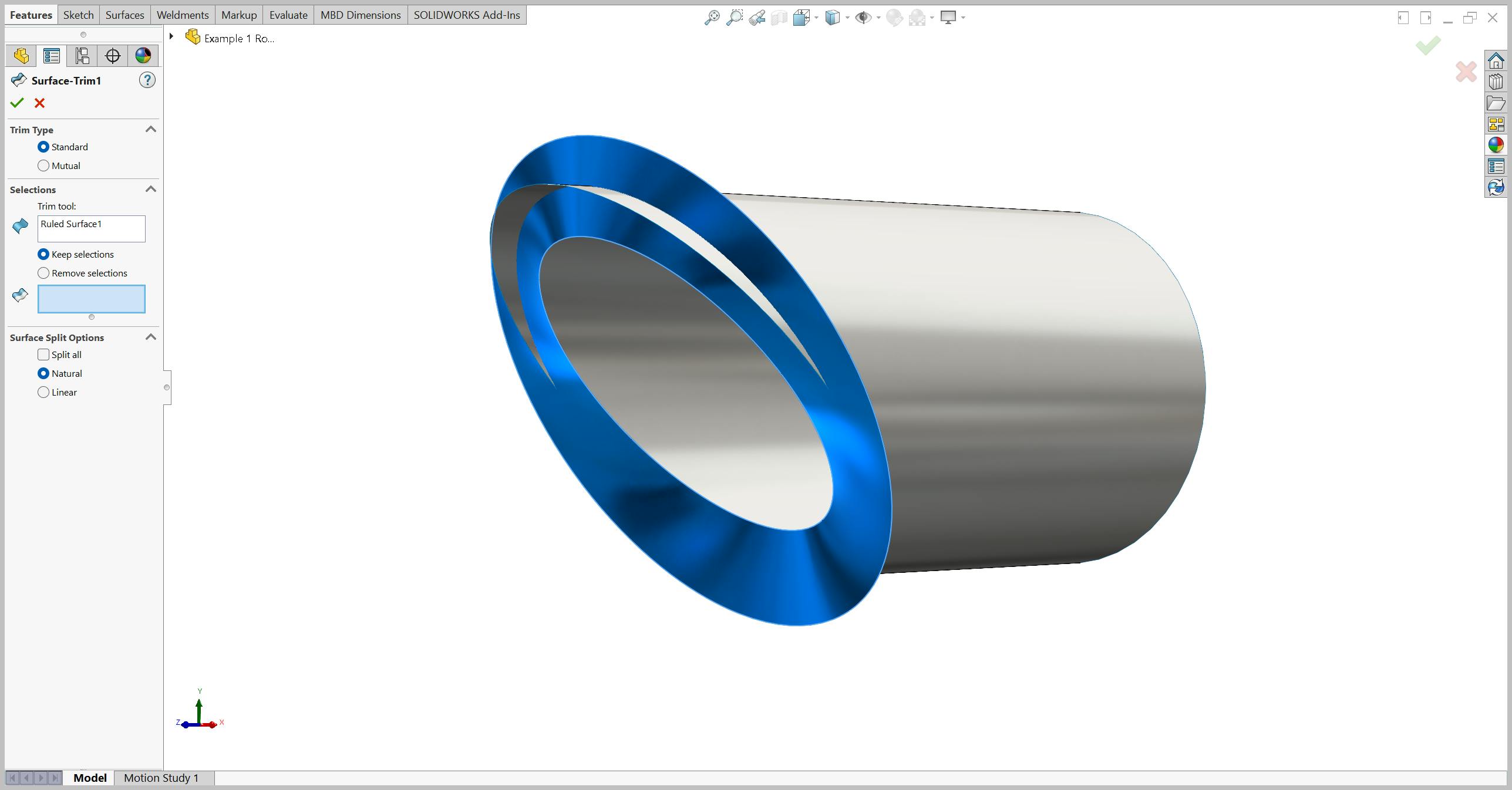
Click the Trim Surface tool in the Surfaces tab. Make sure the “Trim Type” is “Standard” and the “Selections” are set to “Keep Selections”.
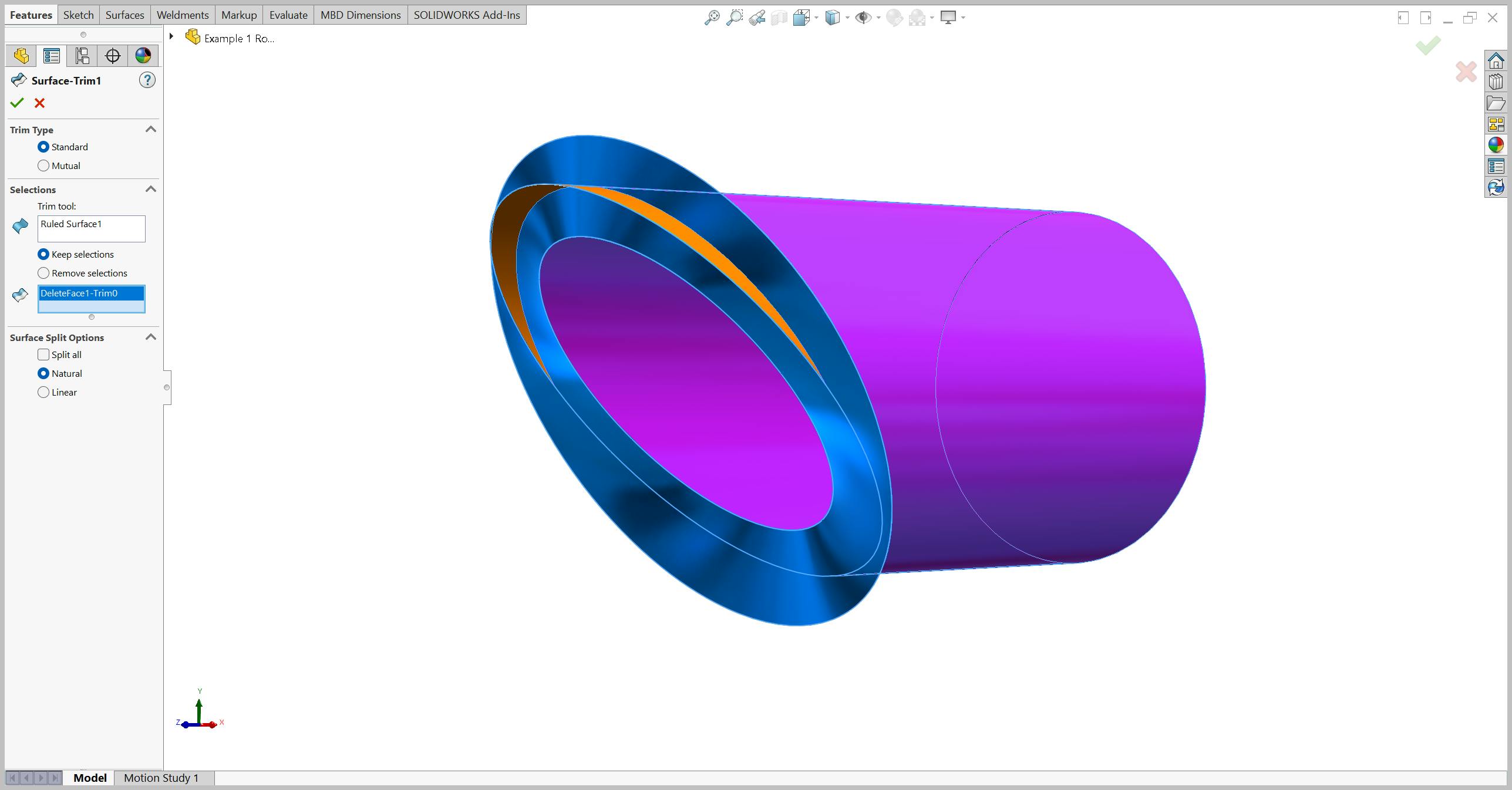
Select the ruled surface as the “Trim Tool” and the tube surface as the “Pieces to Keep”.
Click OK.
,
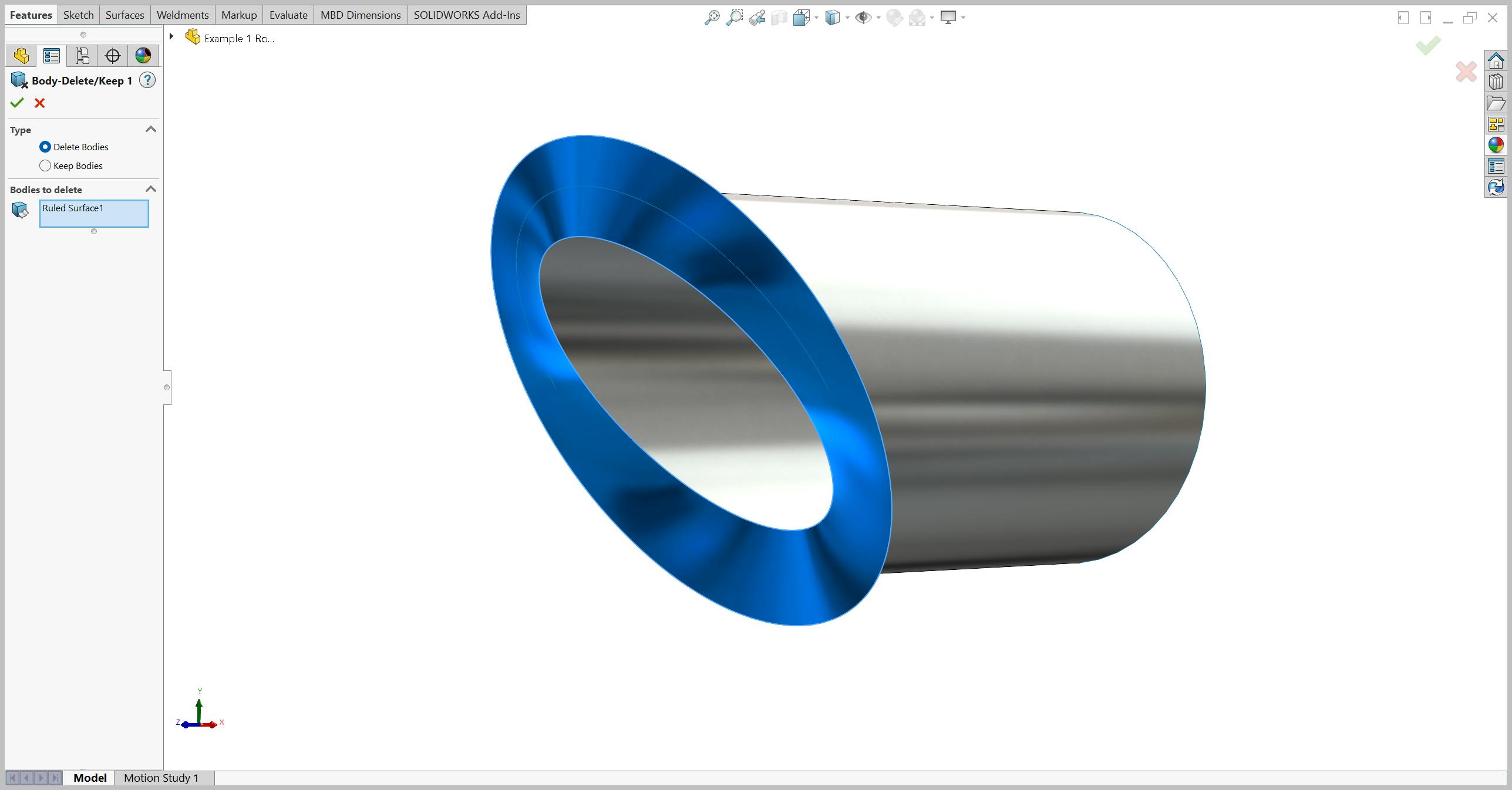
Our ruled surface has served its purpose. To remove it, navigate to the Surface Bodies dropdown in the FeatureManager and right click on the ruled surface.
Click DeleteKeep Body and change the “Type” to “Delete Bodies”. Select the ruled surface and click OK.
,
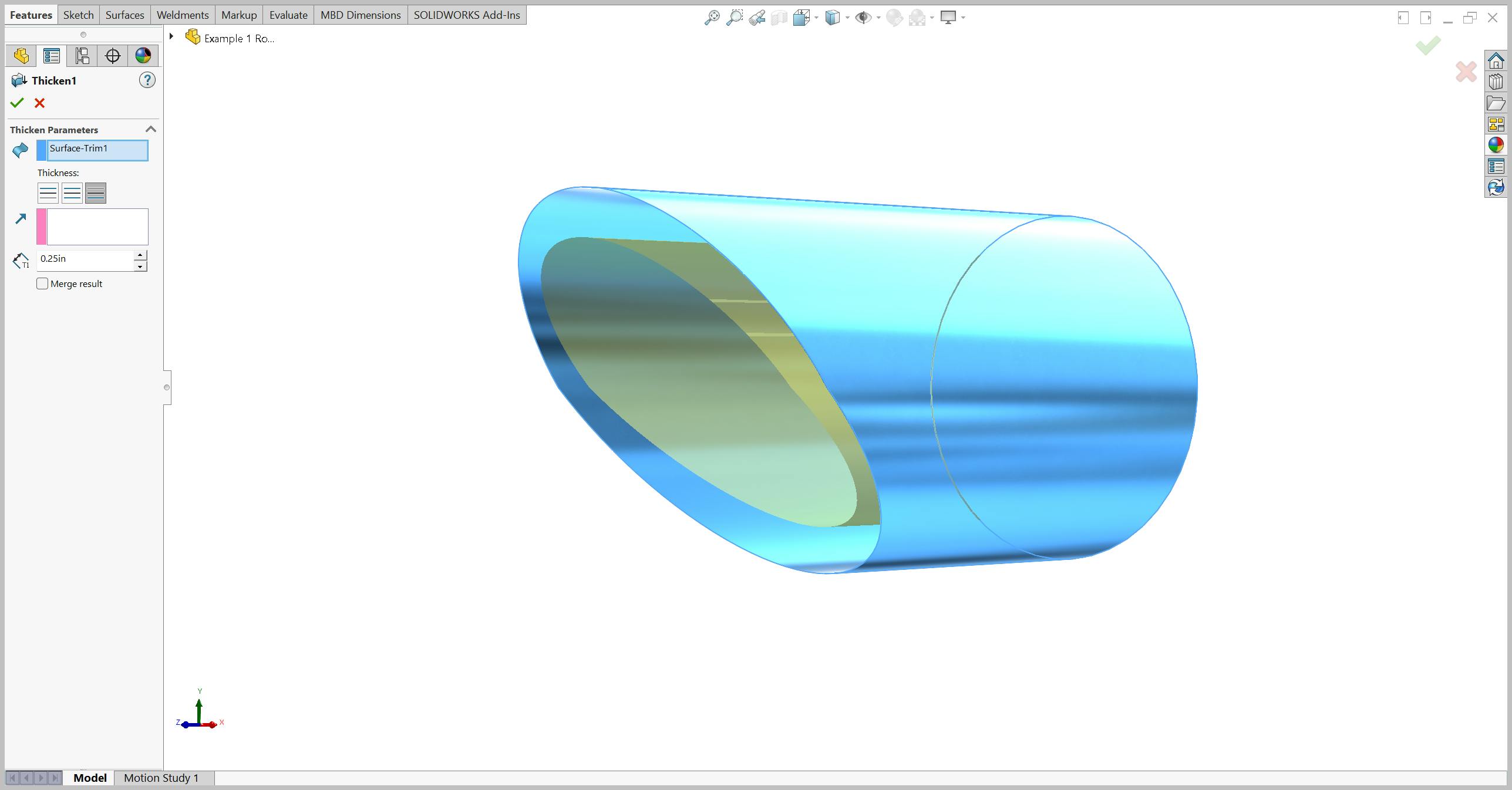
With the excess surfaces removed, click the Thicken tool in the Surfaces tab. Select the outside tube surface as the “Surface to Thicken”. Change the thickness direction until the feature is thickening inward. The yellow preview should be inside of your tube.
Enter the wall thickness of your tube and click OK.
,
Congratulations! You have normalized your miter cut using the Trim Surface Method.
,
In instances where you are concerned about deleting faces, this Replace Face Method will be a safer modeling option.
,
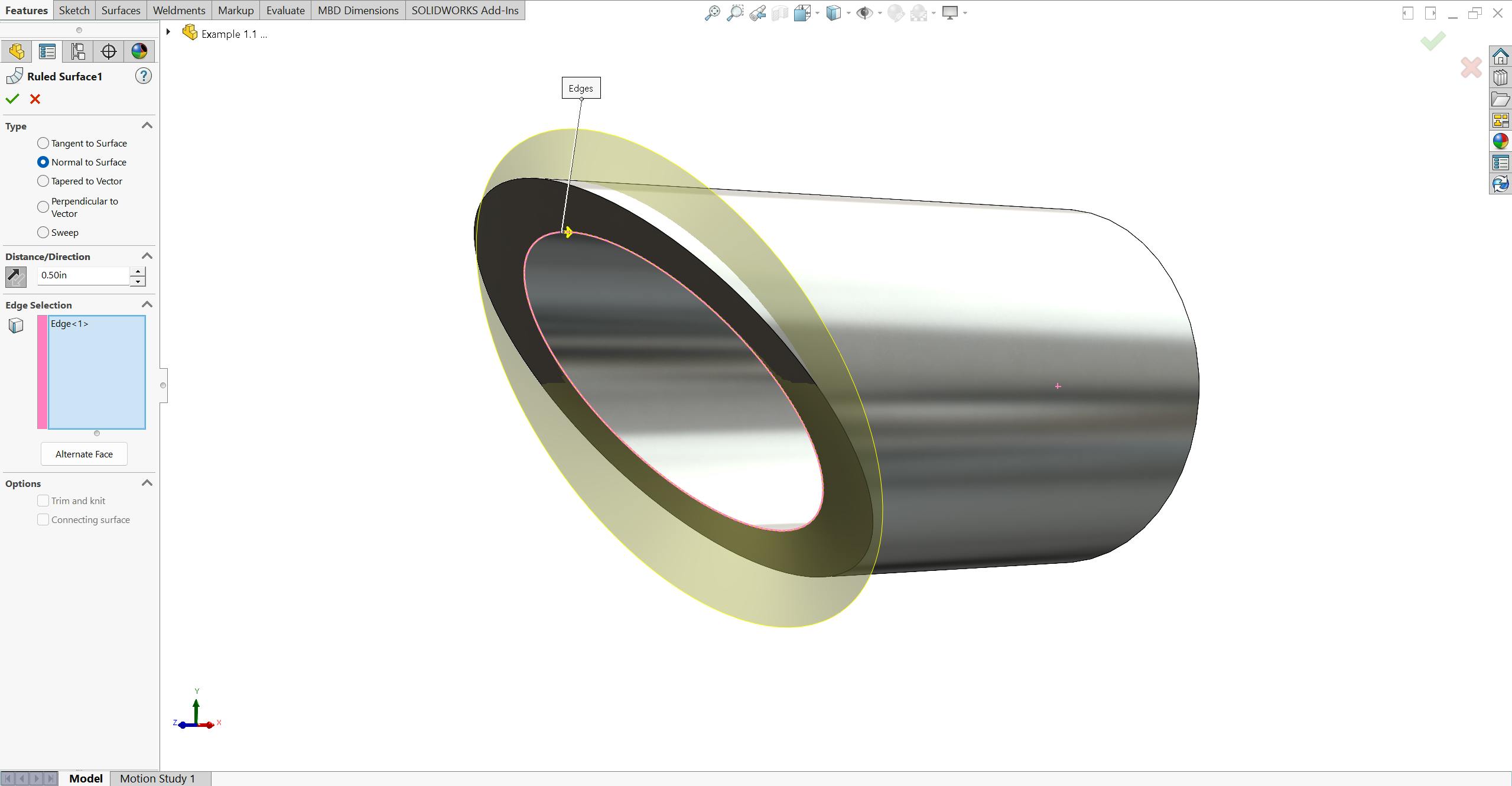
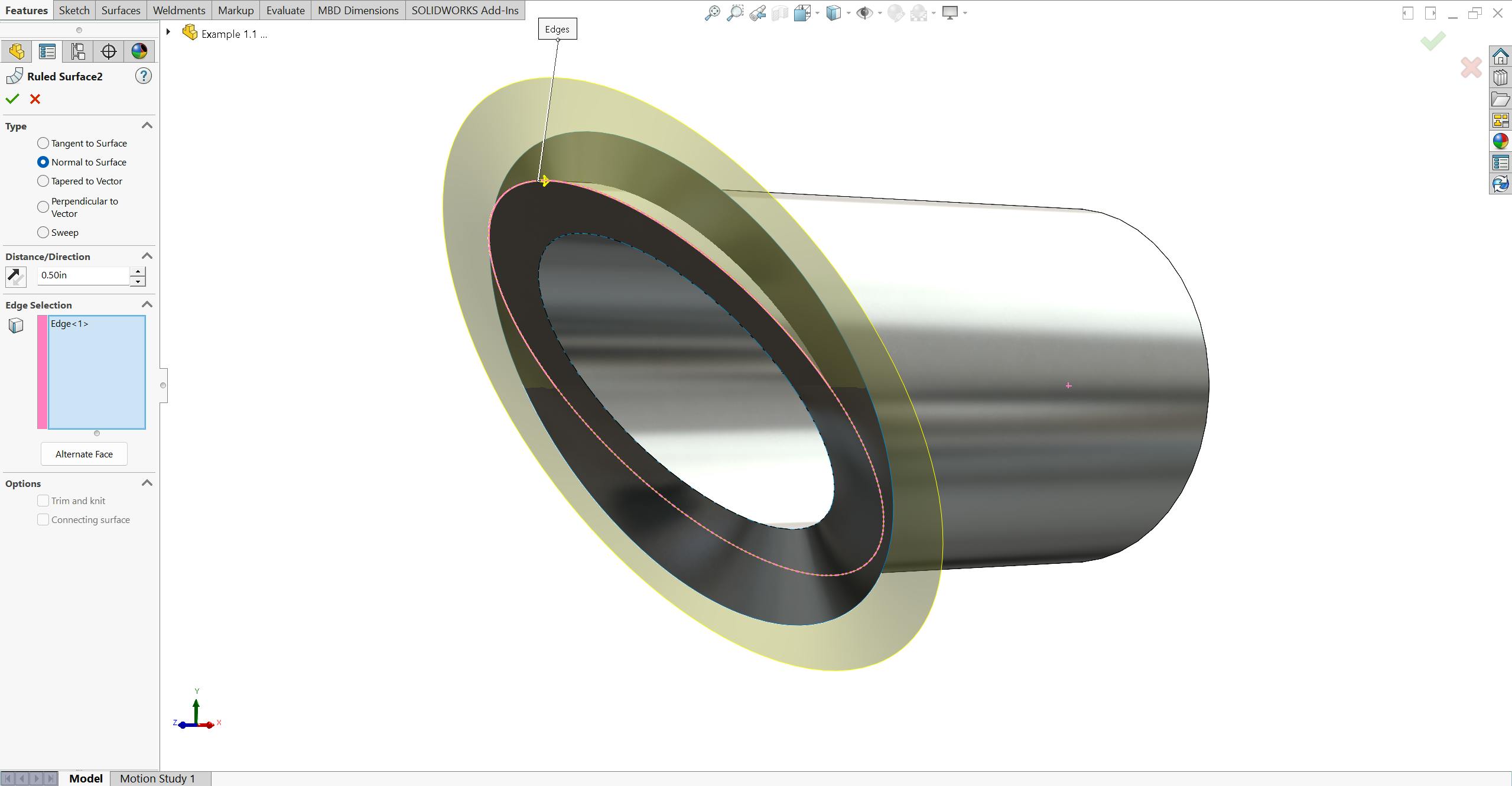
This method requires ruled surfaces from both the inside and outside edges. Follow step 1 from the previous method to create two ruled surfaces from these edges. Make sure your ruled surfaces extrude outwards and normal to the surface of the tube.
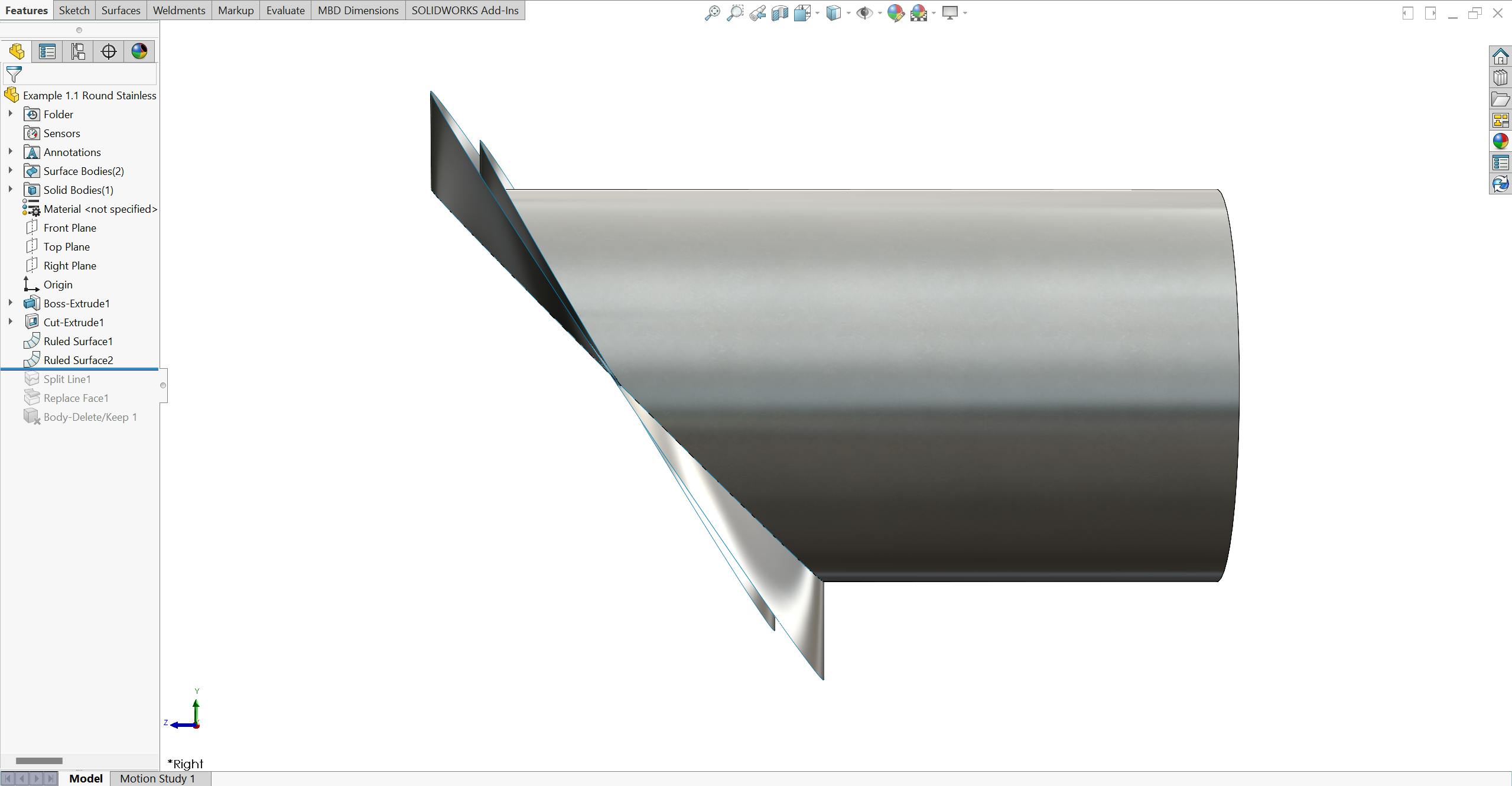
,
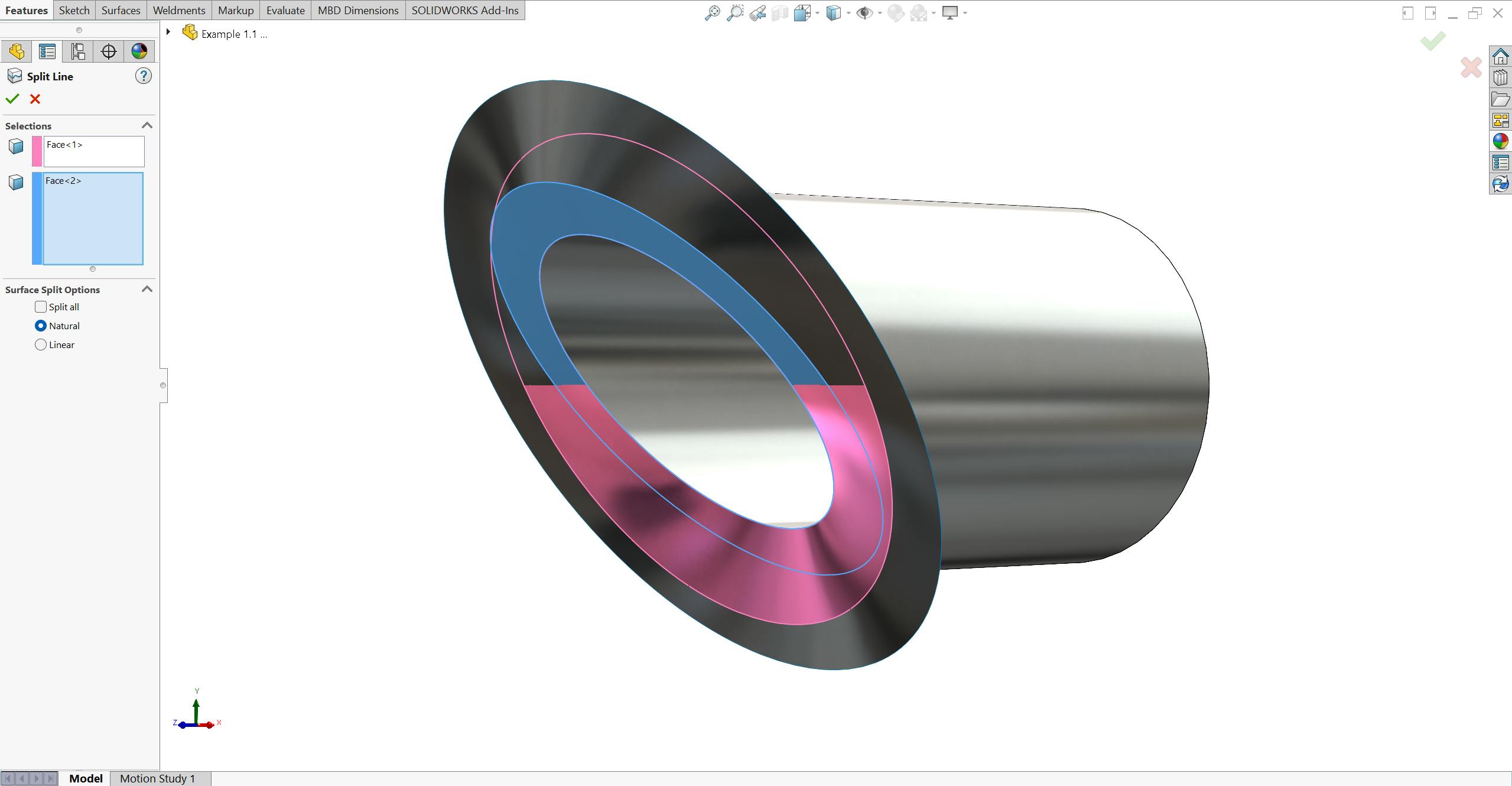
To create an inflection point, click on the Split Line tool from the Curves dropdown.
Select the ruled surface from the inside edge as the “Splitting Face” and the face of the miter cut as the “Face to Split”.
Click OK.
,
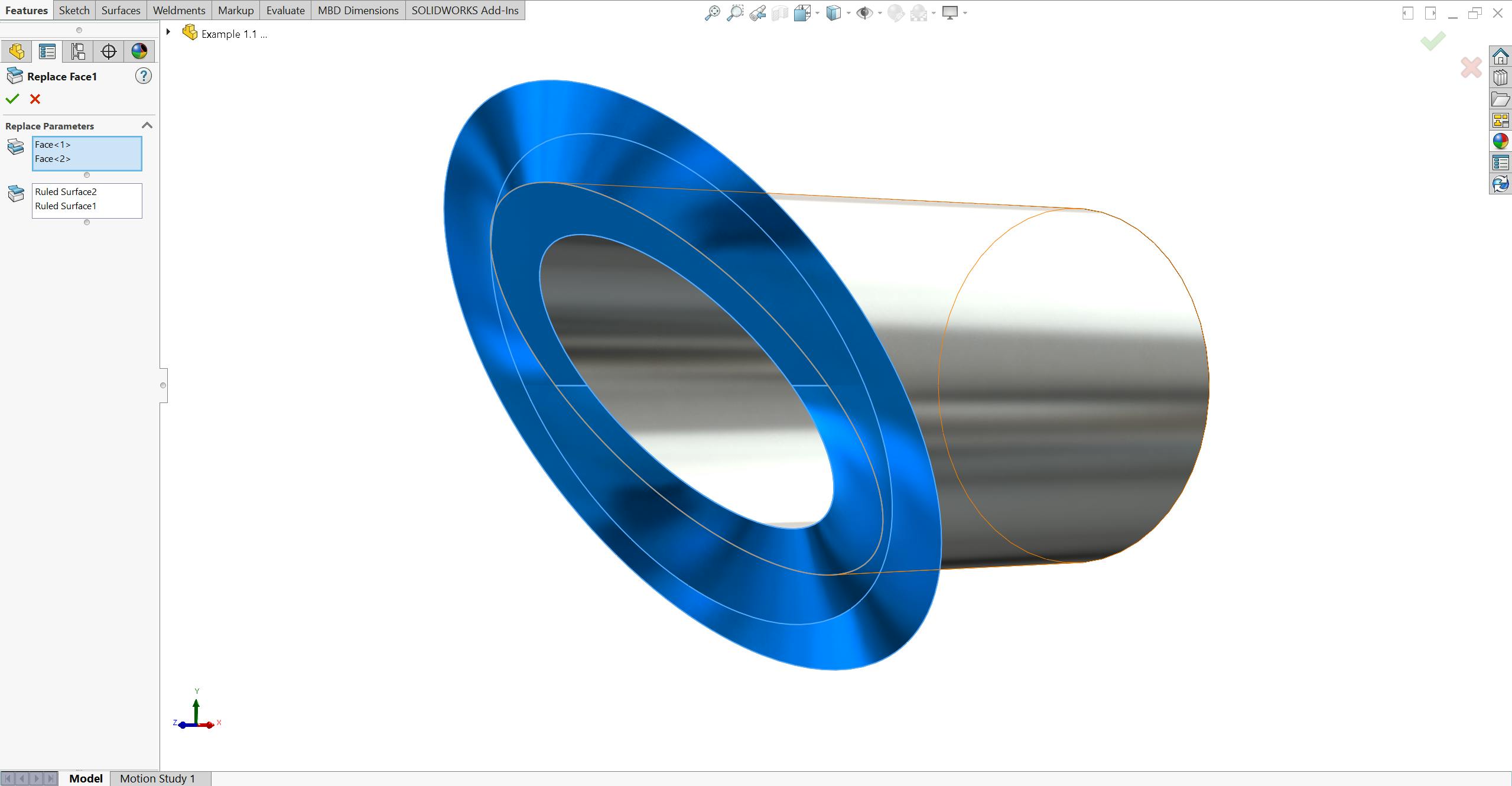
Now that the miter cut face has been split into two faces, it’s time to replace them with the faces of our ruled surfaces.
Click the replace face tool from the Surfaces tab. Select the upper face of the miter cut followed by the lower face as the “Target Faces for Replacement”.
Next, select the ruled surface from the inside edge followed by the ruled surface from the outside edge as the Replacement Surfaces.
It is important to make the selections in the order listed here. Otherwise you could receive an error for self-intersecting geometry.
Click OK.
,
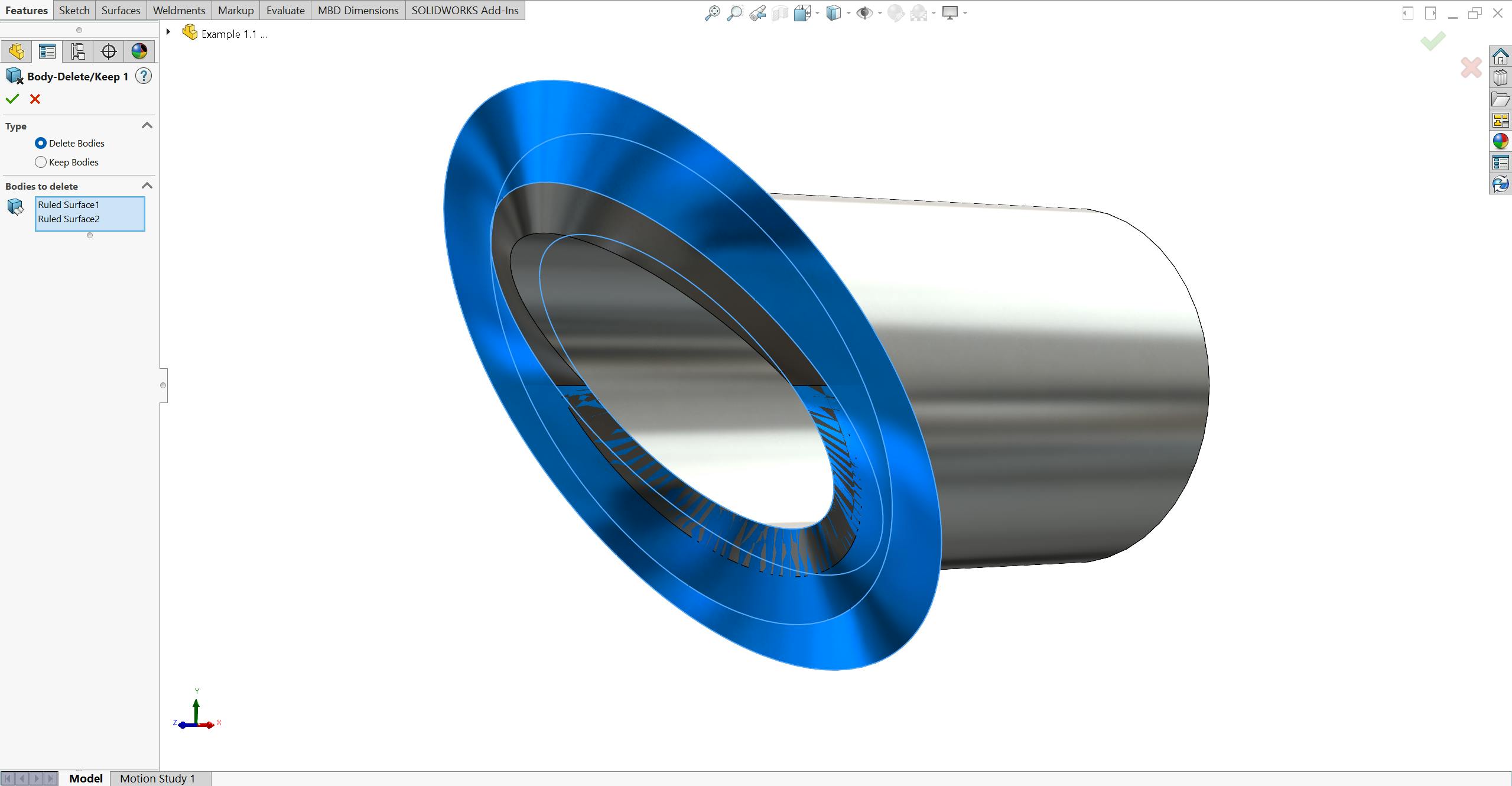
To delete the ruled surfaces follow the instructions in step 4 of the previous method. Make sure to select both ruled surfaces, then click OK.
,
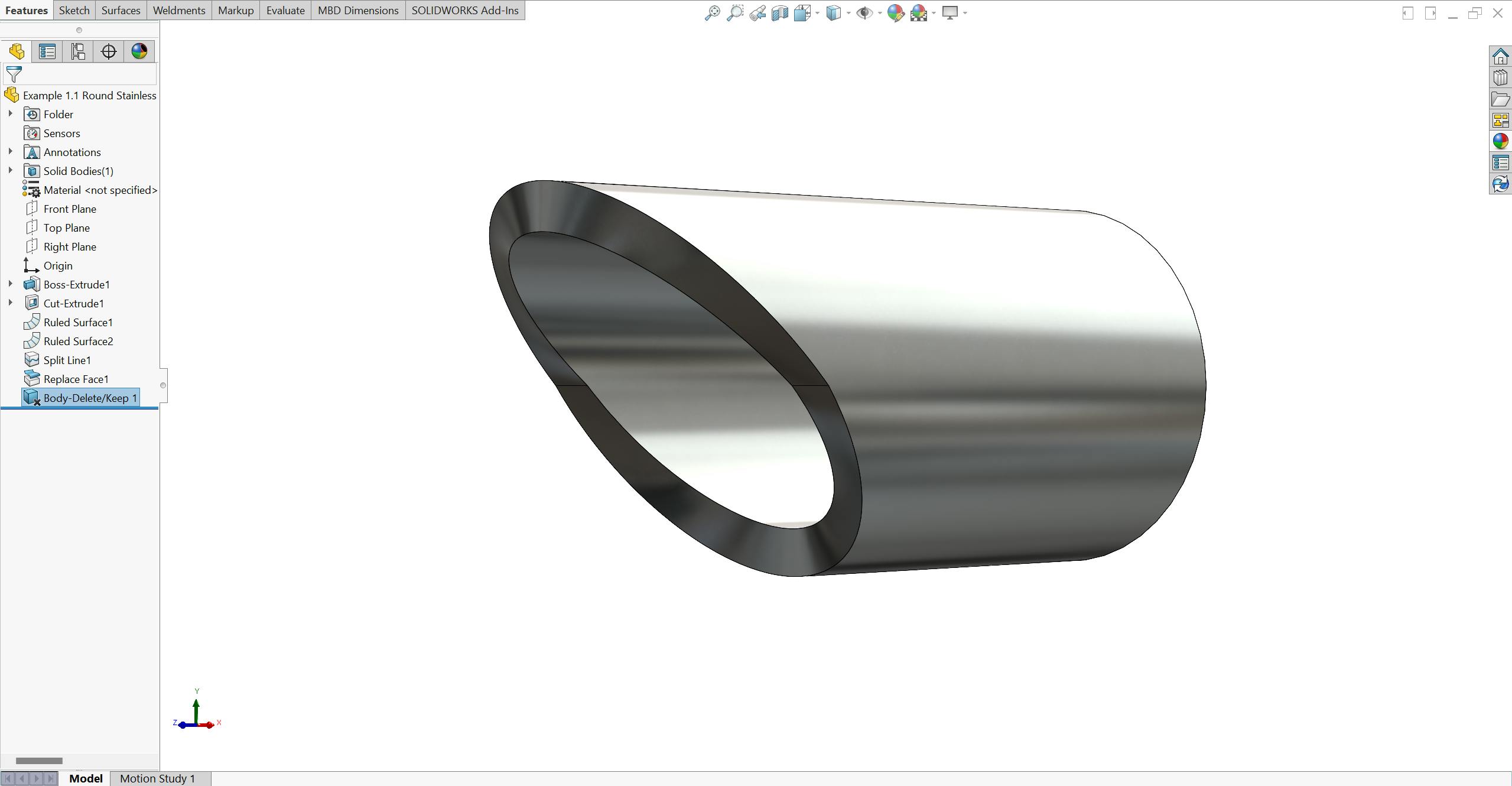
Congratulations! You have normalized your miter cut using the Replace Face Method.
,
Normalizing tube cuts doesn’t have to be daunting or time consuming. We hope these methods help you understand how your miter cuts will look after fabrication. If you want to make sure you’ve followed these steps correctly, review our gallery here.
Now that your tube cuts are normalized, upload your laser tube projects to our Instant Quoting Engine today!
If you have any feedback about the methods discussed or have methods of your own you’d like to share, email us at support@xometry.com!


